

There are times when the best solution isn’t fixing your WordPress site; it’s starting fresh. In this How to Reset a WordPress Website Safely (Step-by-Step Guide), we will cover the essential steps you need to take.
Maybe your website is cluttered with unused plugins, broken themes, test content, or design experiments gone wrong. Or perhaps you’re redesigning, repurposing, or preparing your site for a new project.
Whatever the reason, knowing how to reset a WordPress website properly can save you time, stress, and technical frustration.
In this comprehensive guide, you’ll learn:
- Why you might need a WordPress reset
- How to prepare before resetting
- Different WordPress site reset methods (plugin and manual)
- How to reset the WordPress database safely
- What to do after resetting your site
Let’s walk through it step-by-step.
Why You Might Need to Reset a WordPress Website
Before you reset a WordPress website, understand why it’s necessary.
Common Reasons for a WordPress Reset
- You installed too many plugins and broke your site
- You’re redesigning from scratch
- Your database is cluttered with demo content
- You’re testing themes or plugins
- You want to start WordPress over completely
A WordPress reset clears your database and restores your site to default installation settings — without reinstalling WordPress itself (in most cases).
This How to Reset a WordPress Website Safely (Step-by-Step Guide) will ensure you can reset your website with confidence.
Important Preparation Steps Before Resetting
Resetting your site is powerful — but risky if done carelessly.
1. Backup Your Website First
Before attempting any WordPress reset:
- Backup files (themes, plugins, uploads)
- Backup your WordPress database
You can use backup plugins or your hosting control panel.
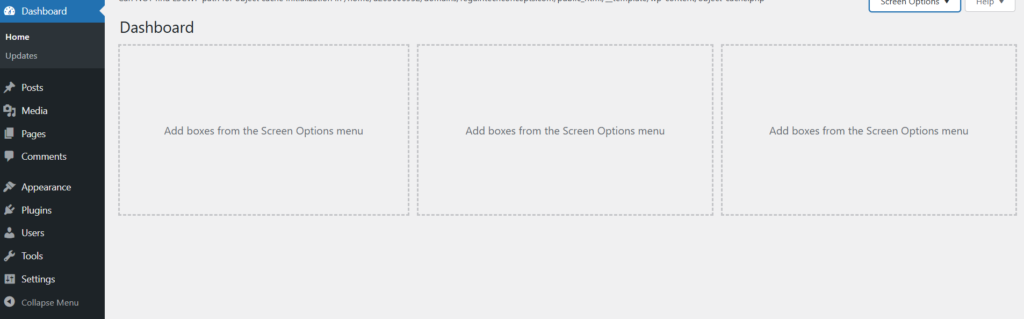
Getting Started With the WordPress Dashboard (Beginner’s Guide)
2. Confirm You’re on the Correct Website
Many users accidentally reset live production websites instead of staging environments.
If possible:
- Perform reset on a staging site
- Double-check your domain
Notify team members if necessary.
3. Understand What Will Be Deleted
A WordPress reset typically removes:
- All posts and pages
- Custom settings
- Plugin data
- Theme customizations
It may not remove:
- Installed theme files
- Installed plugin files
Always read plugin instructions carefully.
Method 1 – Reset a WordPress Website Using a Plugin (Easiest Method)
The simplest way to perform a WordPress reset is by using a dedicated reset plugin.
Recommended Reset Plugin
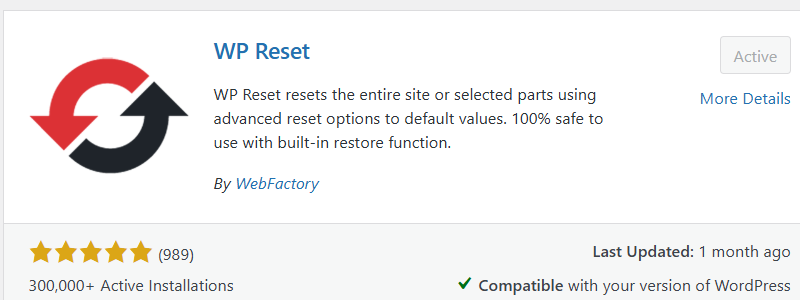
- WP Reset
Steps to Reset Using a Plugin
- Log into your WordPress dashboard
- Go to Plugins → Add New
- Search for “WP Reset”
- Install and activate
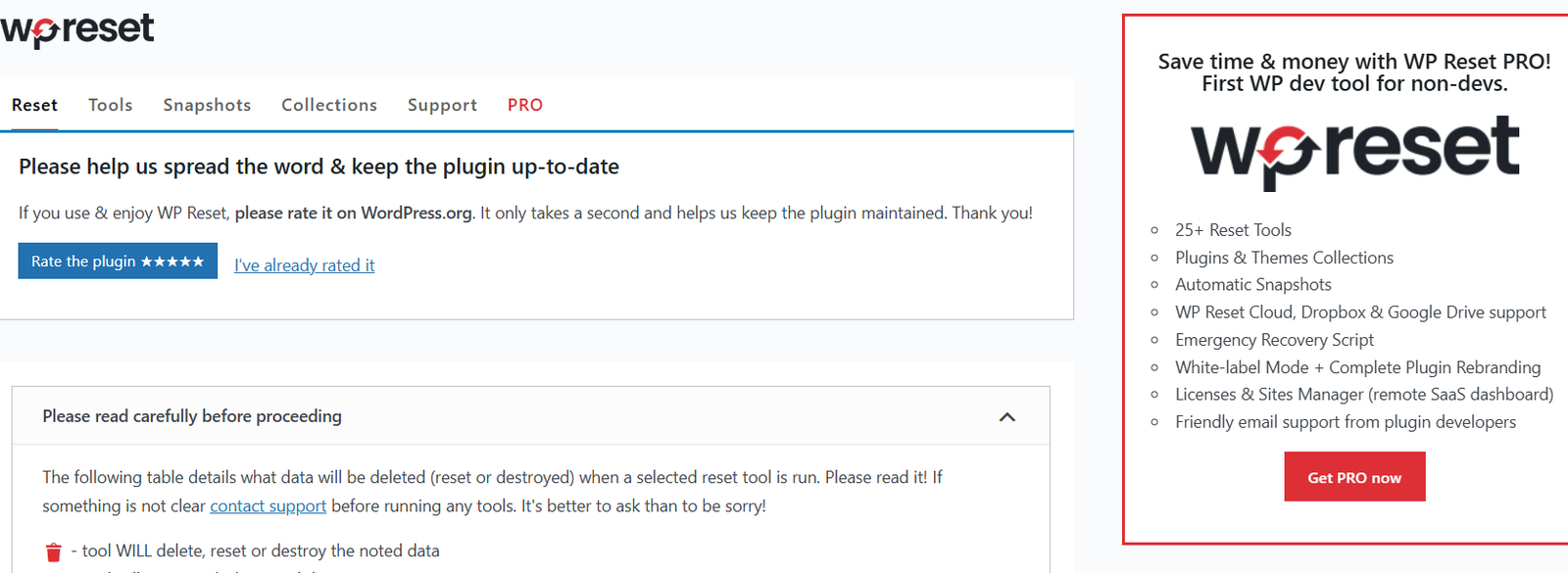
- Navigate to Tools → WP Reset
- Type “reset” in the confirmation field
Click Reset Site
Your WordPress database will reset to default settings.
Why Use a Plugin?
- Beginner-friendly
- Safe and fast
- No database knowledge required
- Optional selective reset features
This is the safest method for most users who want to start WordPress over quickly.
Method 2 – Manually Reset WordPress Database (Advanced Method)
If you prefer manual control, you can reset WordPress through your hosting panel.
⚠️ Recommended only for intermediate users.
Steps to Reset WordPress Database Manually
- Log into your hosting control panel
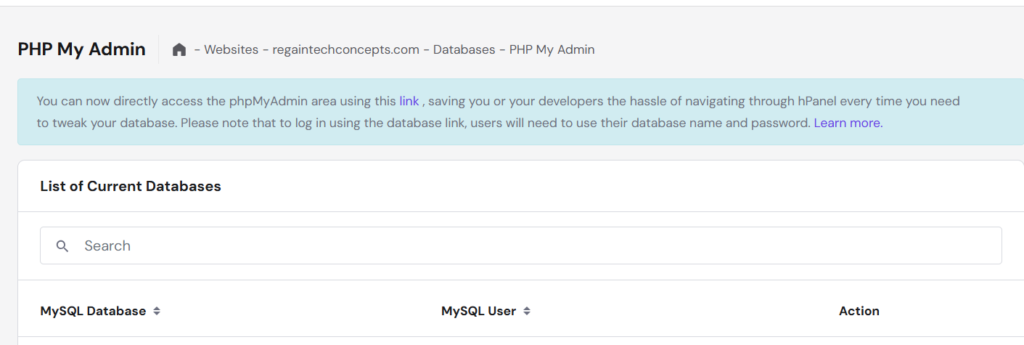
- Open phpMyAdmin
- Select your WordPress database
- Select all tables
- Drop all tables
After that:
- Re-run the WordPress installation by visiting your domain
- Complete setup again
This method fully resets your WordPress database.
Risks of Manual Reset
- Permanent data loss
- Accidental deletion of wrong database
- Breaking other websites on shared hosting
Could you always confirm the database name before proceeding?
Method 3 – Delete and Reinstall WordPress (Full Reset)
Another method to reset a WordPress website is full deletion.
Steps:
- Delete all WordPress files from File Manager
- Delete the database
- Create new database
- Upload fresh WordPress installation files
- Run installation setup
This is ideal if:
- Your site is heavily infected
- Core files are corrupted
You want a complete clean start
How to Host a Website for Free (Beginner-Friendly Guide)
Do you need a website? Let’s Transform Ideas into Beautiful Designs.
Contact us today for a free consultation or quote.
Best Practices After Resetting WordPress
After you successfully reset a WordPress website, follow these best practices:
1. Install Only Essential Plugins
Avoid reinstalling unnecessary plugins. Keep your site lightweight.
How to Install a Theme on WordPress (Step-by-Step Guide)
2. Choose a Fast, Responsive Theme
Select a theme optimized for speed and SEO.
3. Set SEO Foundations Immediately
- Configure permalinks
- Install SEO plugin
- Set site title and tagline
- Create clean navigation
Search engines like Google prioritize websites that are structured and optimized.
4. Enable Security and Backups
Install:
- Security plugin
- Backup plugin
Enable automatic updates
Common Mistakes to Avoid When Resetting WordPress
❌ Not backing up first
❌ Resetting the wrong website
❌ Deleting the wrong database
❌ Forgetting to reinstall security measures
❌ Ignoring SEO settings after reset
A WordPress site reset should be intentional and strategic.
FAQ – Reset a WordPress Website
Q1: Will resetting WordPress delete my themes and plugins?
It deletes content and database settings, but plugin and theme files may remain installed.
Q2: Can I reset WordPress without losing everything?
Yes. Some plugins allow selective reset options (like resetting only theme settings).
Q3: Is it safe to reset a live website?
It’s not recommended unless absolutely necessary. Use a staging environment whenever possible.
Q4: How long does it take to reset a WordPress website?
Using a plugin, it takes less than 5 minutes. Manual reset may take longer.
Q5: Does resetting WordPress affect SEO?
Yes — it removes content, so your rankings may disappear if you reset a live indexed site.
Knowing how to reset a WordPress website gives you the confidence to experiment, redesign, and fix mistakes without fear.
Whether you use a plugin, manually reset the WordPress database, or reinstall WordPress completely, always:
- Backup first
- Double-check settings
- Follow security best practices
- Rebuild strategically
Resetting isn’t failure, it’s a fresh start.




[…] How to Reset a WordPress Website and Start All Over (Complete Beginner Guide) […]
[…] How to Reset a WordPress Website and Start All Over (Complete Beginner Guide) […]
[…] How to Reset a WordPress Website and Start All Over (Complete Beginner Guide) […]