


Building your first website can be an exciting yet daunting task, especially if you’re new to web development. Fortunately, with the right tools and guidance, the process can be streamlined significantly. ElementsKit, a powerful add-on for Elementor, provides a user-friendly platform that simplifies website creation. In this article, we will guide you through the steps of How to Build Your First Website Using Elementkit using the free version of ElementsKit, from setting up your development environment to customizing your site and finally publishing it for the world to see. Whether you aim to create a personal blog, a portfolio, or a business site, this comprehensive guide will equip you with the necessary knowledge and skills to get started.
Understanding ElementsKit: An Overview
How to Build Your First Website Using Elementkit
What is ElementsKit?
ElementsKit is like the Swiss Army knife of WordPress design, versatile and packed with handy tools. It’s a powerful Elementor add-on that offers a wide range of prebuilt templates, widgets, and more to help you create stunning websites with ease. Whether you’re a complete newbie or someone who has dabbled with web design, ElementsKit makes it easy to bring your vision to life.
Introduction to WordPress Web Design: A Beginner’s Step-by-Step Guide
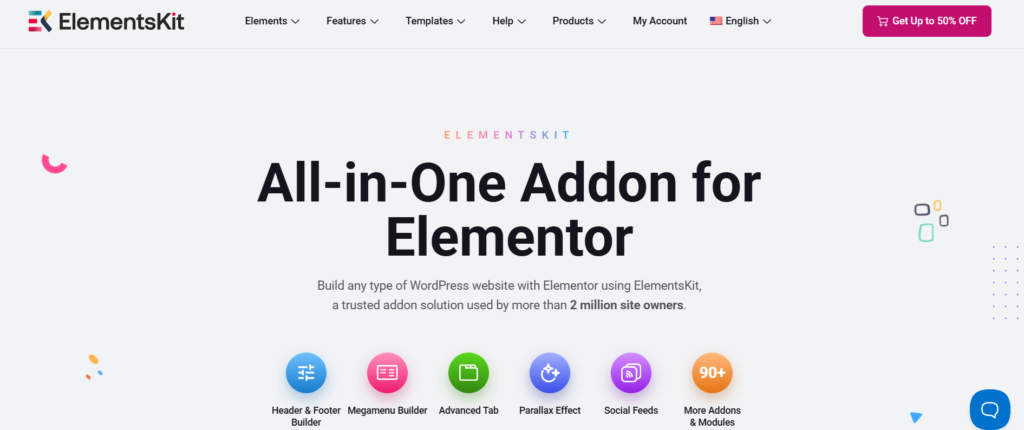
Key Features of ElementsKit
ElementsKit offers a wide range of features designed to simplify your design process. Here are some standouts:
- Widgets Galore: From image galleries to testimonials, there’s a widget for everything.
- Template Library: Ready-made templates that you can customize, because who has time to start from scratch?
- Responsive Design: Your site will look good on any device, even your Aunt Judy’s flip phone.
- Header & Footer Builder: Craft your site’s top and bottom just as beautifully as its middle.
- Mega Menu Support: Make navigation a breeze, even for your most indecisive visitors.
How to Install WordPress on cPanel (Step-by-step Beginner-Friendly)
Benefits of Using ElementsKit for Beginners
Starting your website journey can feel like climbing Everest without oxygen, but ElementsKit eases that struggle. Here’s why it’s beginner-friendly:
- Intuitive Interface: If you can use a drag-and-drop feature in your photo editing software, you can master ElementsKit.
- Community Support: Join a thriving community of users who are happy to help and share tips.
- Cost-Effective: The free version is packed with enough features to get you started without emptying your wallet.
- Learning Curve: The more you use it, the more you learn, making it a perfect platform for growth and discovery.
How to Host a Website for Free (Beginner-Friendly Guide)
Setting Up Your Development Environment
Choosing a Domain and Hosting Service
Choosing the right domain and hosting service is like selecting a good pizza essential! Start by picking a domain name that reflects your brand (and is somewhat easy to spell). Then, shop for a hosting service that matches your needs and budget. Look for reliable uptime, decent support, and scalability options because no one wants their site to crash at the worst possible moment!
Getting Started With the WordPress Dashboard (Beginner’s Guide)
Installing WordPress
Once you have your domain and hosting lined up, it’s time for the main event: installing WordPress! Most hosting services offer a one-click installation (easy peasy lemon squeezy). Just navigate to your hosting dashboard, find the WordPress installation section, and follow the prompts. In a few minutes, you’ll be the proud owner of a shiny new WordPress site!
Preparing Your Computer for Development
Before you dive into designing your website, make sure your computer is ready for action. Ensure you have a stable internet connection (we all know the struggle of buffering!), and install any necessary software, like a modern web browser. It’s also a good idea to familiarize yourself with basic file management and perhaps save those Pinterest cat memes for later!
How to Install a Theme on WordPress (Step-by-Step Guide)
Installing WordPress and ElementsKit
Downloading and Installing WordPress
If you missed the chance during the hosting setup, fear not! You can manually download WordPress from the official website. Simply grab the latest version, unzip the files, and upload them to your server where your domain lives. Follow the installation wizard prompts, and voilà, you’re ready for some serious web magic!
Adding ElementsKit to Your WordPress Site
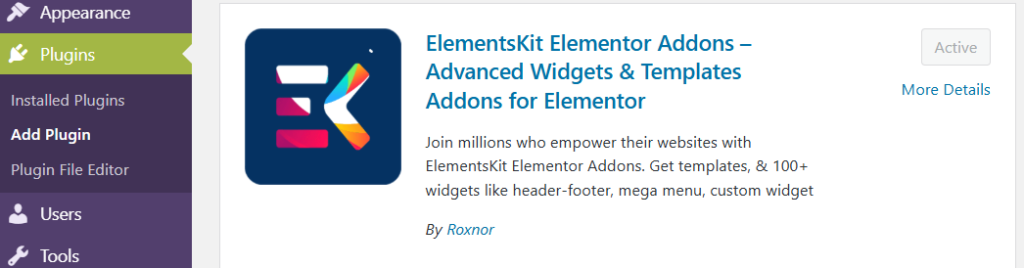
Now it’s time to enhance your WordPress site with ElementsKit. Head to your WordPress dashboard, click on “Plugins,” and then “Add New.” Search for ElementsKit, click “Install Now,” and once it’s done installing, hit “Activate.” This is like giving your website a magic wand; things are about to get interesting!
How to Create Pages and Menus in WordPress (Beginner Guide)
Configuring ElementsKit Settings
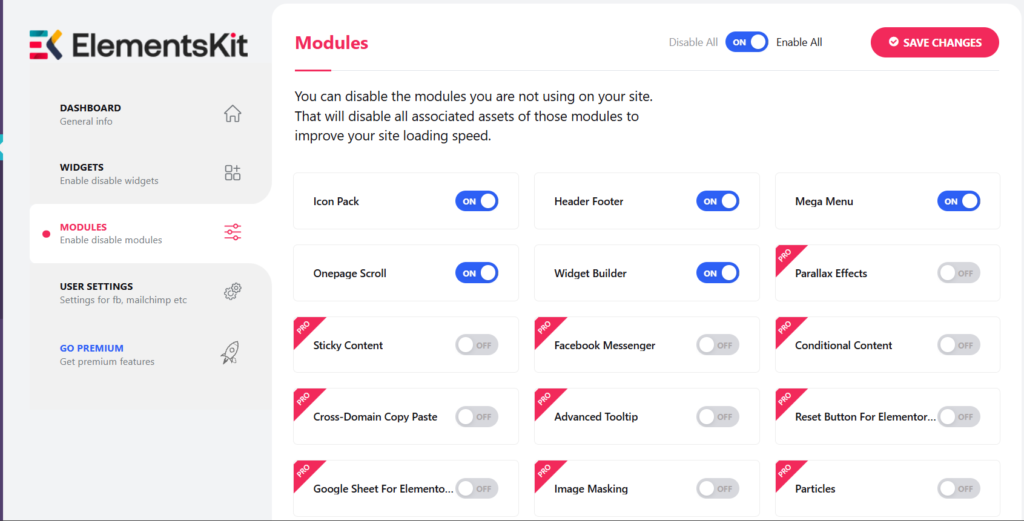
After activating ElementsKit, it’s a good idea to poke around the settings. Access the ElementsKit menu in your dashboard to discover options like module settings, layout configurations, and more. Tweak these settings to suit your style, and prepare for all the fun you’ll have designing!
Designing Your First Page: Step-by-Step Guide
Selecting a Template
Let’s kick things off by choosing a stunning template from the ElementsKit library. With a few clicks, you can pick a design that resonates with your style and purpose. Think of it as picking the outfit for your first date, make sure it speaks to who you are!
How to Design Header and Footer Using Kadence Theme
Using the Drag-and-Drop Builder
With your template selected, it’s time to unleash the drag-and-drop builder. This part is like playing with Legos, just grab elements, drag them into your design, and drop them where you want them. It’s super intuitive and satisfying, and you can see your site come to life in real-time.
How to Reset a WordPress Website and Start All Over (Complete Beginner Guide)
Adding Content Elements
Now, let’s sprinkle some magic dust—aka content—on your page! Use the various widgets to add text, images, buttons, and even videos. Craft compelling copy and sprinkle in visuals that resonate with your audience. Remember, your goal is to connect, engage, and maybe make them chuckle a bit too!Customizing Your Website with ElementsKit Features
WordPress Wonders: Beginner Tutorials to Build Stunning Websites
Styling Your Pages with Custom CSS
Adding a personal touch to your website is as easy as pie (well, maybe easier!). With ElementsKit, you can input custom CSS to give your site that unique flair. Navigate to the Custom CSS section in your ElementsKit settings, and unleash your inner designer. A dash of creativity and a sprinkle of CSS magic can transform your bland pages into visually stunning showcases that’ll have visitors saying, “Wow, how did they do that?”
Essential WordPress Tips for Aspiring Designers
Integrating Plugins and Additional Features
Plugins are like sprinkles on your website cupcake; they make everything better! ElementsKit integrates seamlessly with various plugins that can add everything from contact forms to galleries and social media feeds. Browse the ElementsKit library or WordPress Plugin Repository and get ready to enhance your website’s functionality. Just remember, moderation is key; too many plugins can lead to a cluttered site, and nobody wants that!
Creating Responsive Designs
In a world where everyone is glued to their smartphones, it’s crucial to ensure your website looks fabulous on all devices. Luckily, ElementsKit allows for responsive design straight out of the box. Use the responsive settings to adjust fonts, margins, and layouts for tablets and mobiles. Remember, if your website isn’t mobile-friendly, it’s like wearing socks with sandals – a big no-no!
How to Design a Responsive Website on WordPress Using Elementor
How to Create a Custom Contact Form Using Forminator
Optimizing for Performance and SEO
Speed Optimization Techniques
A slow website is like a tortoise in a race; it just won’t get you anywhere! To optimize your site’s speed, leverage ElementsKit’s built-in features like lazy loading images and asset minification. Consider using a caching plugin for lightning-fast loading times. Your visitors will appreciate the speed, and you’ll win the race for their attention!
Basic SEO Best Practices
If you want your website to be found on the vast Internet highway, you need some solid SEO strategies! Start with optimizing titles, meta descriptions, and alt tags for images. Use relevant keywords throughout your content, but avoid keyword stuffing – nobody likes a try-hard! ElementsKit can help you implement these best practices with its user-friendly interface, so you’re just a few clicks away from SEO success.
Using Analytics for Performance Tracking
It’s time to play detective and figure out what works and what doesn’t! Integrate Google Analytics with your website to track visitor behavior, page views, and where your traffic is coming from. This data-driven approach will help you understand your audience better and refine your content strategy. Remember, knowledge is power, and analytics are your trusty sidekick!
Publishing Your Website: Final Steps
Previewing Your Website
Before hitting that big shiny publish button, give your website a thorough once-over. Preview your site across different devices and browsers to ensure everything looks perfect and functions smoothly. This is your last chance to make any tweaks or adjustments, so take a moment to bask in your creation before sharing it with the world!
Setting Up Domain and Launching
Your website is ready to take the stage! Choose a catchy domain name (easy to type, hard to forget) and connect it to your hosting provider. Once that’s done, you’re all set to launch! Hit that publish button and watch your website go live. Cue the confetti and celebratory dance, you’ve just joined the ranks of the World Wide Web!
Announcing Your New Website
Now that your masterpiece is live, it’s time for your grand announcement! Share your website on social media, send an email blast to friends and family, or even shout it from the rooftops (just kidding, please don’t). Engage with your audience and invite them to explore. Remember, the more buzz you create, the more visitors you’ll attract!
Maintaining and Updating Your Website
Regular Backups and Security Measures
Don’t let your hard work go to waste! Regularly back up your website to ensure you don’t lose your precious content. Utilize plugins that automate backups, so you can sleep easily knowing your site is secure. Also, implement strong security measures like HTTPS and firewalls to protect against pesky hackers. Think of these actions as your website’s personal bodyguard!
Keeping Themes and Plugins Updated
Just like you wouldn’t wear last year’s fashion trends, you shouldn’t let your themes and plugins go stale either. Regularly update them to take advantage of new features, improvements, and critical security fixes. ElementsKit makes this simple with notifications, so keep your virtual wardrobe fresh and up-to-date!
Monitoring Website Performance and User Feedback
Keeping an eye on how your website is performing is essential for long-term success. Regularly check load times, traffic stats, and how users are interacting with your site. Don’t shy away from asking for feedback from your visitors; they’ll often provide valuable insights that can help you enhance the user experience. After all, good websites evolve, and yours should be no exception! Congratulations on taking the first steps toward building your own website with ElementsKit! By following the steps outlined in this guide, you should now have a functional and visually appealing website ready for visitors. Remember, the web is constantly evolving, so continuing to learn and adapt your skills will help you maintain and enhance your site over time. Don’t hesitate to experiment with new features, seek feedback, and keep your content fresh. Happy website building!
- How to Convert YouTube Videos to Text Transcripts (Easy & Fast)
- How to Stop WhatsApp Automatic Media Saving (Step-by-Step Guide)
How to Build Your First Website Using Elementskit
FAQ
Do I need any coding skills to use ElementsKit?
No, ElementsKit is designed for users of all skill levels, and its drag-and-drop interface allows you to build a website without any coding knowledge.
Is the free version of ElementsKit sufficient for building a basic website?
Yes, the free version of ElementsKit includes many essential features that are perfect for creating a basic website. However, premium features are available if you need more advanced options.
Can I use ElementsKit with any WordPress theme?
Yes, ElementsKit is compatible with most WordPress themes, but it works best with themes that are built specifically for Elementor.
How can I get support if I encounter issues while using ElementsKit?
You can access support through the ElementsKit documentation, community forums, or by reaching out to their customer support team for assistance.
Table of Contents
Pages
Posts
- How to Turn a Smartphone Into a Full-Time Income Machine: Step-by-Step Guide.
- Essential WordPress Security Tips to Protect Your Website Effectively
- How to build your first website using Elementskit for free
- WordPress Posts vs Pages: What’s the Difference and When to Use Each
- How to Write Your First WordPress Blog Post (Step-by-Step Beginner Guide)




[…] How to build your first website using Elementskit for free […]