


If you run a WordPress site, learning how to backup WordPress website properly is not optional — it’s essential. Whether you manage a blog, business website, or eCommerce store, your data is constantly at risk from hacking attempts, plugin conflicts, server failures, or simple human error.
A single mistake can wipe out months (or years) of work.
The good news? Backing up your WordPress website is easier than you think. In this complete guide, you’ll learn:
- Why backups are critical
- Different ways to back up WordPress
- Step-by-step backup instructions
- Best practices for scheduling backups
- How to restore your WordPress site from a backup
Let’s secure your website the right way.
WATCH FULL VIDEO TUTORIAL
Why Backups Are Critical for WordPress Sites
Before diving into how to backup WordPress websites, it’s important to understand why backups matter.
1. Protection Against Hackers
WordPress powers over 40% of the web, making it a prime target for cyberattacks. If malware infects your site, a clean backup can restore everything quickly.
2. Plugin & Theme Conflicts
Installing or updating plugins can sometimes break your website. A recent backup allows you to roll back instantly.
3. Hosting Server Failures
Even reputable hosting providers experience outages or data corruption.
4. Human Errors
Accidentally deleting files or database content happens more often than you think.
Without a backup, recovery can be expensive or impossible.
Different Methods: How to Backup WordPress Website
There are three primary ways to back up a WordPress website:
- Manual Backup
- Using Backup Plugins
- Through Hosting Provider Tools
Method 1: Manual Backup (Advanced Users)
Manual backups involve saving both:
- WordPress files
- WordPress database
Step 1: Backup WordPress Files via FTP
You’ll need an FTP client like FileZilla.
- Connect to your hosting server.
- Navigate to your root directory (usually public_html).
Download all WordPress files to your computer.
Step 2: Backup WordPress Database via phpMyAdmin
- Log in to your hosting control panel.
- Open phpMyAdmin.
- Select your WordPress database.
- Click Export → Choose Quick → Download SQL file.
You now have a complete manual backup.
Best for: Developers and advanced users.
How to Reset a WordPress Website and Start All Over (Complete Beginner Guide)
Method 2: How to Backup WordPress Website Using Plugins (Recommended)
For most users, plugins are the easiest and safest method.
Popular backup plugins include:
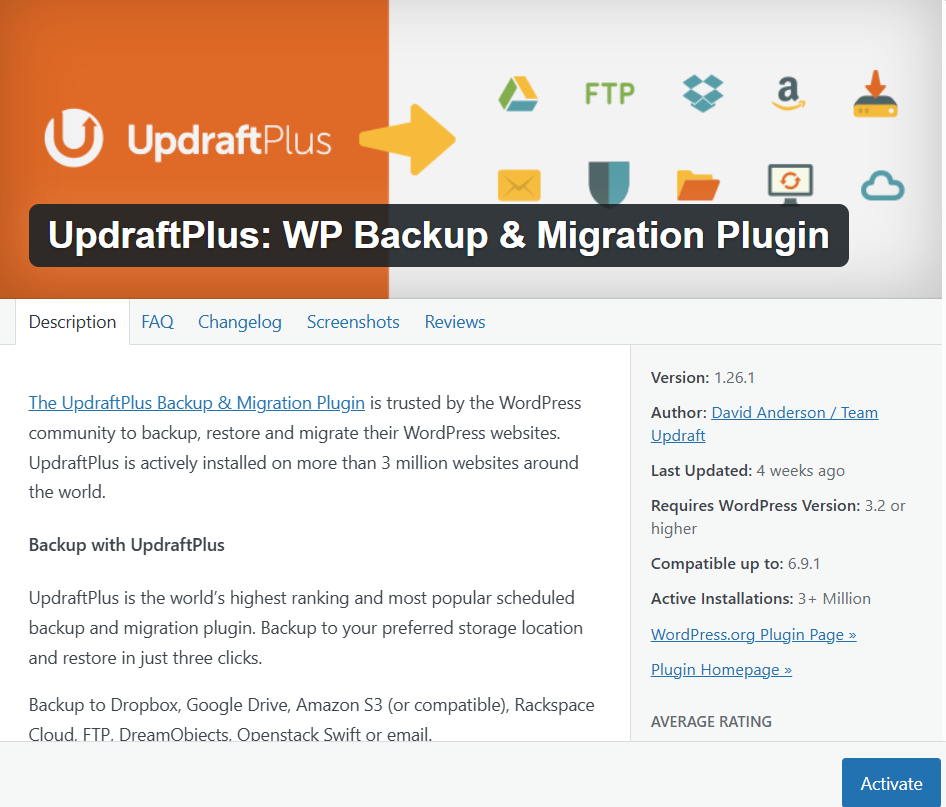
- UpdraftPlus
- BackupBuddy
- Jetpack Backup
All-in-One WP Migration
Step-by-Step: Backup Using UpdraftPlus
- Install and activate UpdraftPlus.
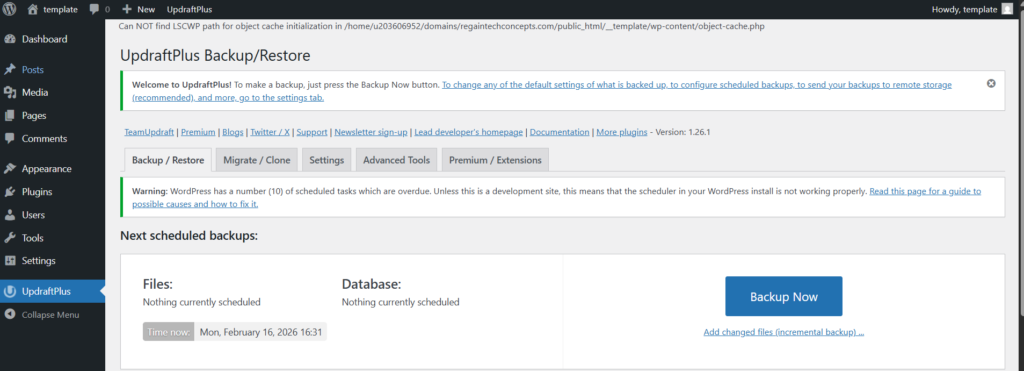
- Go to Settings → UpdraftPlus Backups.
- Click Backup Now.
- Choose files + database.
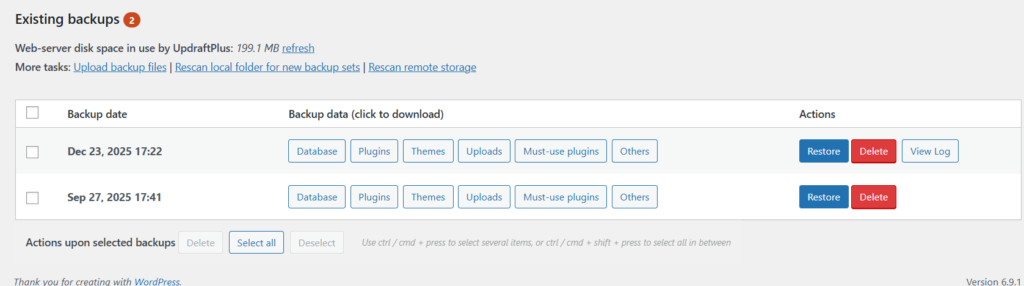
- Download the backup files.
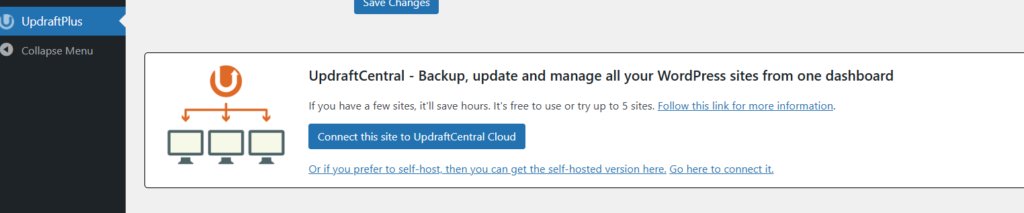
You can also connect cloud storage like:
- Google Drive
- Dropbox
- Amazon S3
Automated backups can be scheduled daily, weekly, or monthly.
Recommended for: Beginners and non-technical users.
WordPress Wonders: Beginner Tutorials to Build Stunning Websites
Method 3: Backup via Hosting Provider
Many managed WordPress hosts offer automatic daily backups.
Steps typically include:
- Log into the hosting dashboard.
- Navigate to the Backups section.
- Create a manual backup.
- Download a copy to your local device.
Some hosts provide 1-click restore functionality.
Always confirm:
- How frequently backups are created
- How long backups are stored
Whether downloads are allowed
Essential WordPress Tips for Aspiring Designers
Step-by-Step: Complete WordPress Backup Checklist
If you want a reliable system, follow this structure:
✔ Backup WordPress files
✔ Backup database
✔ Store backups in cloud storage
✔ Keep at least 3 recent copies
✔ Test restoration process
This ensures your backup strategy is truly secure.
How to Create a Custom Contact Form Using Forminator
Best Practices for Scheduling WordPress Backups
Learning how to backup WordPress websites is only half the process. You must also schedule it correctly.
Frequency Guidelines:
- Static blog: Weekly backups
- Business website: Daily backups
- WooCommerce store: Real-time or daily backups
3-2-1 Backup Rule
Follow this industry-standard rule:
- 3 total copies
- 2 different storage types
- 1 offsite backup
Never store backups only on your hosting server.
How to Restore a WordPress Website from Backup
Knowing how to back up WordPress websites is important, but restoration is equally critical.
Restore Using Plugin
- Go to your backup plugin dashboard.
- Select an available backup.
- Click Restore.
- Choose files and databases.
- Confirm restoration.
Manual Restore Process
- Upload WordPress files via FTP.
- Open phpMyAdmin.
- Drop existing database tables.
- Import backup SQL file.
After restoration:
- Clear cache
- Check permalinks
- Test forms and pages
Your website should now be fully functional.
FAQ: How to Backup WordPress Website
How often should I backup my WordPress website?
It depends on how often your site updates. For active websites, daily backups are recommended.
What is included in a WordPress backup?
A complete backup includes:
- WordPress core files
- Themes
- Plugins
- Media uploads
Database content
Can I backup WordPress without a plugin?
Yes. You can manually backup files via FTP and database via phpMyAdmin.
Where should I store WordPress backups?
Use offsite cloud storage like Google Drive, Dropbox, or Amazon S3 for safety.
Are hosting backups enough?
Not always. It’s best to maintain your own backup copies for full control.
Understanding how to back up WordPress websites is one of the most important skills for any website owner. Without backups, your site is vulnerable to data loss, hacking, and technical failures.
By implementing:
- Automated backups
- Offsite storage
- Proper scheduling
- Regular restoration testing
You ensure long-term website security and peace of mind.
Start today because the best time to back up your WordPress website is before something goes wrong.
Transforming Ideas into Beautiful Designs
Contact us today for a free consultation or quote.




[…] How to Backup WordPress Website: Complete Step-by-Step Guide for Beginners (2026) […]
[…] How to Backup WordPress Website: Complete Step-by-Step Guide for Beginners (2026) […]